How do I view or change target lessons?
u003cbru003e
How to view target lessons
- From the Home screen, enter the students name using the Search Bar – You can also locate your student by clicking the View all students tile in the Quick Access area
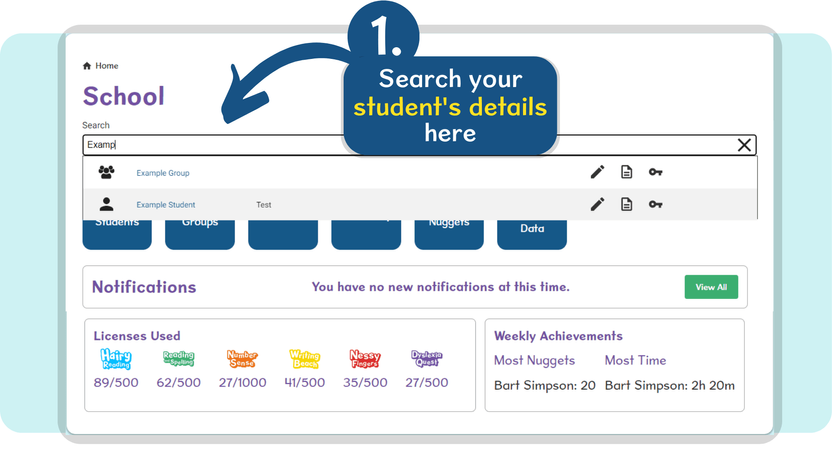
- Click the Pencil icon to view the student’s details page
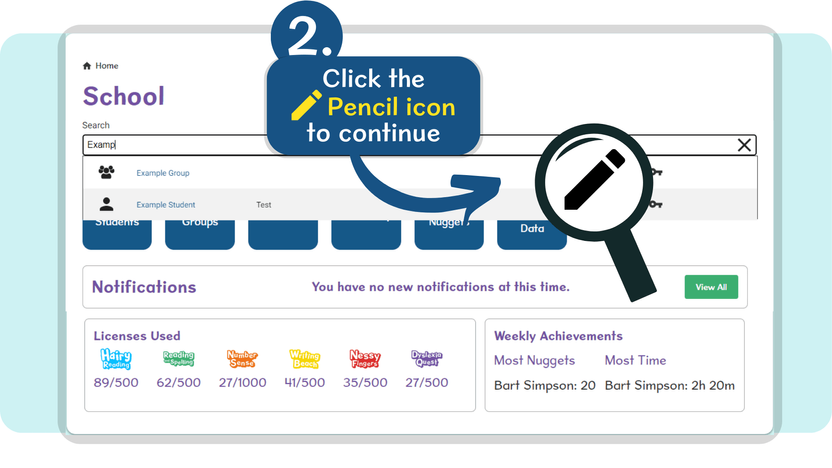
- At the top of the student’s details page, click the Learning Targets tab
- Use the Choose Application drop-down to select the programs targets that you want to view
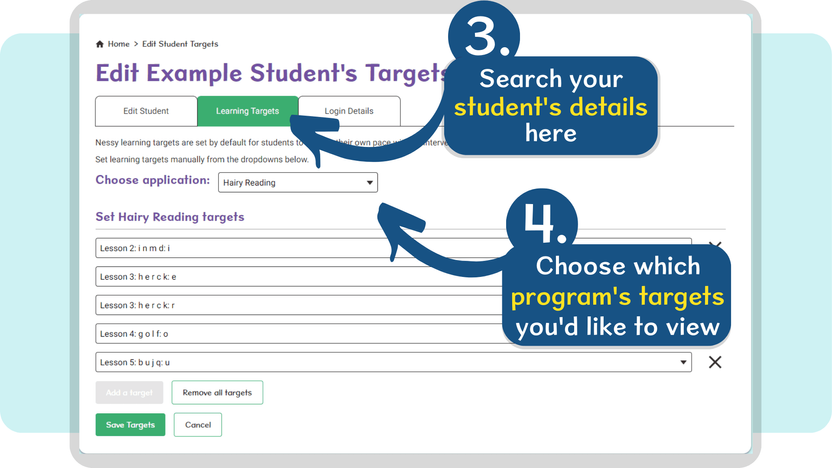
The page will then update with the program’s targets listed below.
How to change target lessons
- Use the Choose Application drop-down to view the list of targets for that Nessy program.
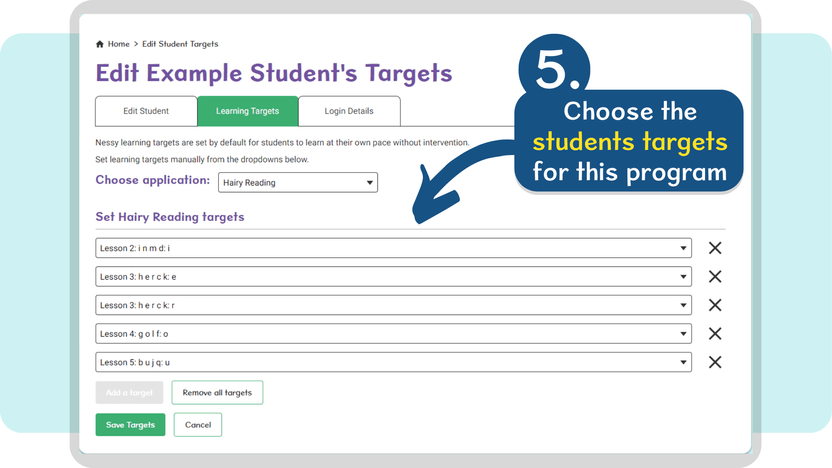
- Use the drop-down arrow to select a new target for this student. If you’d like to delete a target, click the X button next to the target. You can also Add a Target or Remove All Targets by clicking the options at the bottom of the list.
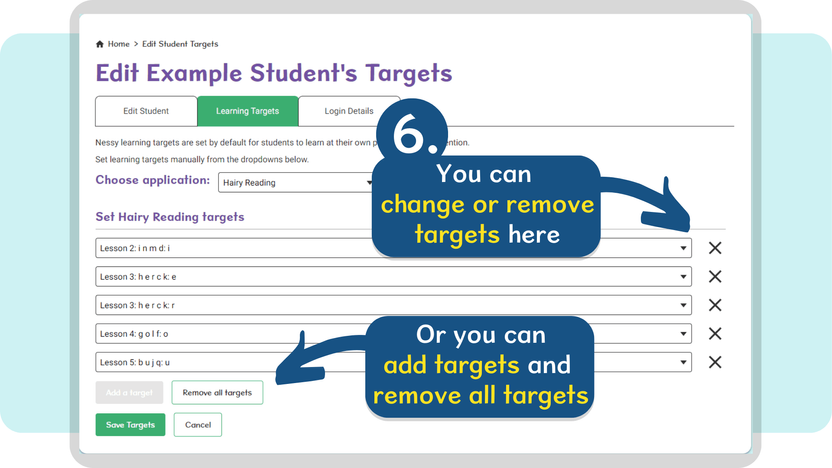
Once complete, click the Save Targets button to save this student’s new targets.