How do I give multiple students access in bulk?
You can grant access to Nessy to a select group of studentsu003cstrongu003e (Option 1)u003c/strongu003e,u003cstrongu003e u003c/strongu003eor all students on your accountu003cstrongu003e (Option 2)u003c/strongu003e.u003cbru003eu003cstrongu003eChoose the option below that best suits you.u003c/strongu003e
Option 1: Bulk access to a select group
- From the Home screen, click the View All Groups tile in the Quick Access area
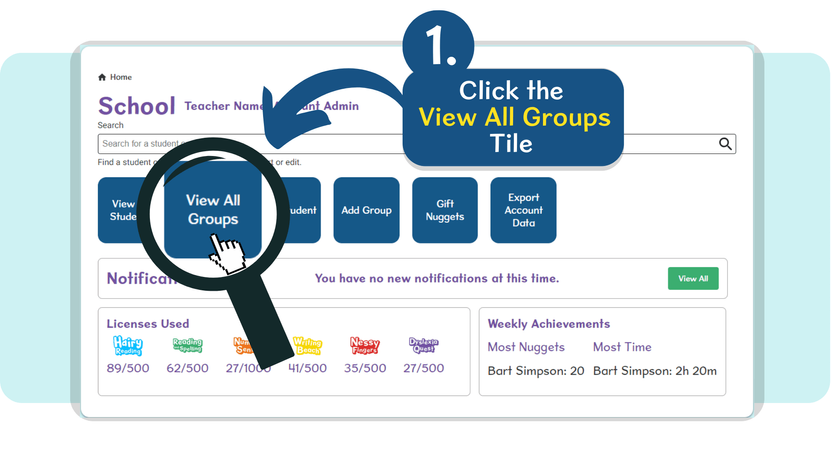
- Use the Search bar to locate a specific group, or scroll down the list until you find the group.
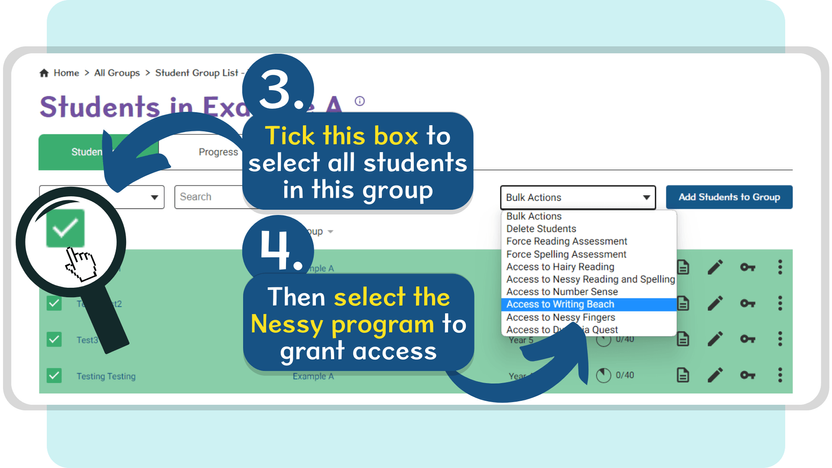
- Tick the box next to Name at the top of the group’s students list to automatically tick all students within this list.
- Use the Bulk Action drop-down to select which program you’d like to allocate to these students. Repeat this process to allocate multiple programs.
Option 2: Bulk access to all students
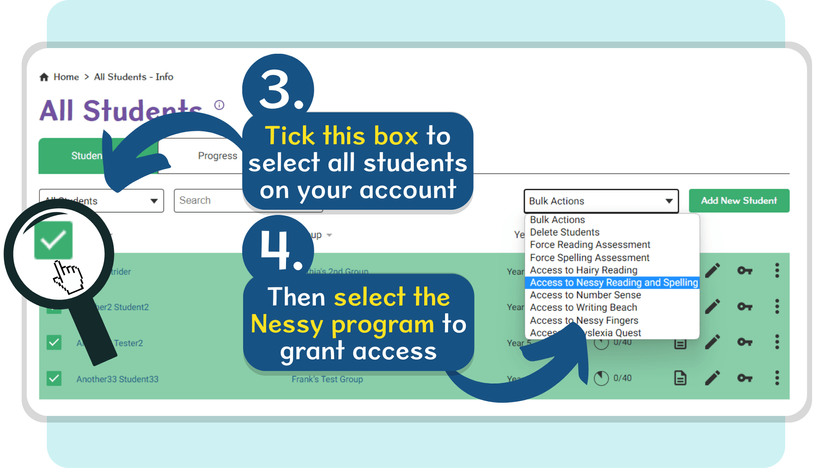
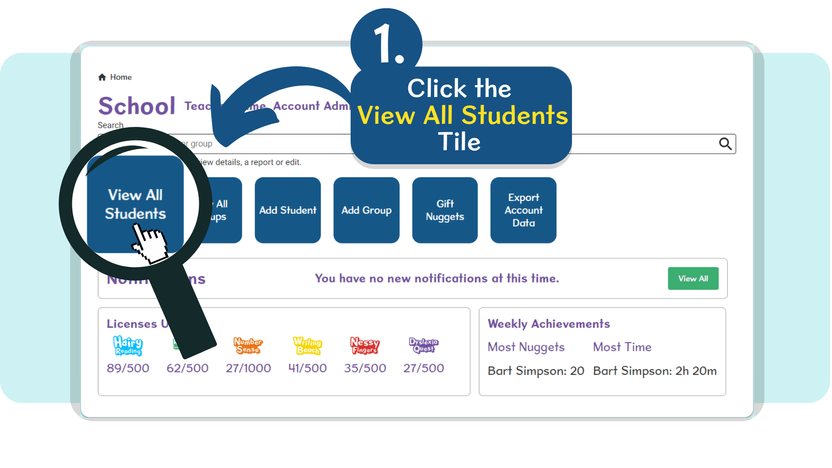
- From the Home screen, click the View All Students tile in the Quick Access area
- Tick the box next to Name at the top of the students list to automatically tick all students within this list.
- Use the Bulk Action drop-down to select which program you’d like to allocate to all students. Repeat this process to allocate multiple programs.